
Note: This Blog was written to gain interest in recording data using general spreadsheet, found in workbook programs, such as Microsoft Office Excel and Microsoft Works, Lotus, and other named spreadsheets to include Sunsystem’s Star Office. It was not to answer every possible use, and some programs are designed to work differently. There are many well written books for sale that will go into great detail in the uses of these programs. This is simply an introductory to inspire the user to explore, and make use of these programs.
Setting up Second Sheet
I want to point out that Microsoft works only opens and uses one spreadsheet at a time, but in many Office programs start out with three blank spreadsheets (respectively, sheet 1, sheet 2, and sheet 3). I already covered how to rename and color code the bottom tab of the spreadsheets, and how to format columns and rows, and I began with naming the second spread sheet “Income vs. Expense”. And like the first spread sheet, I started the first two columns with the date, and then, the Job Number. From here, I made the third column th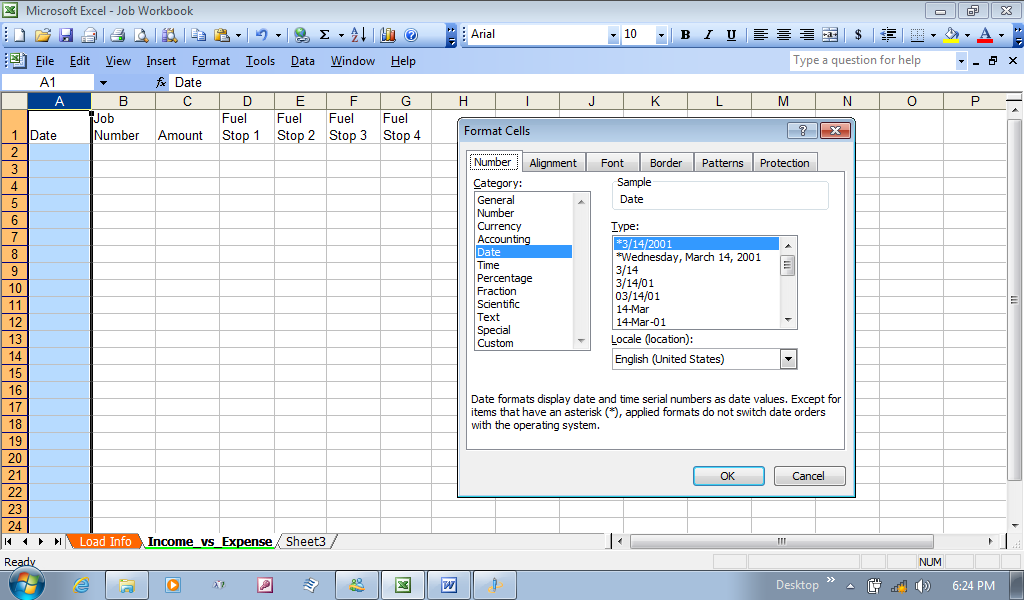 e amount of expected pay for the job to be listed next. The following four columns, I listed the biggest expense to running a truck, and that was Fuel (Fuel 1, Fuel 2, Fuel 3, and Fuel 4; you can add more or less, but for an over the road driver, driving coast to coast may even need two or three more columns. And as a reminder, I clicked on the first column (column A) and right clicked, then chose format cells and chose date. The next columns I’ll work on is the Amount (Income) column, along with the Fuel Stop
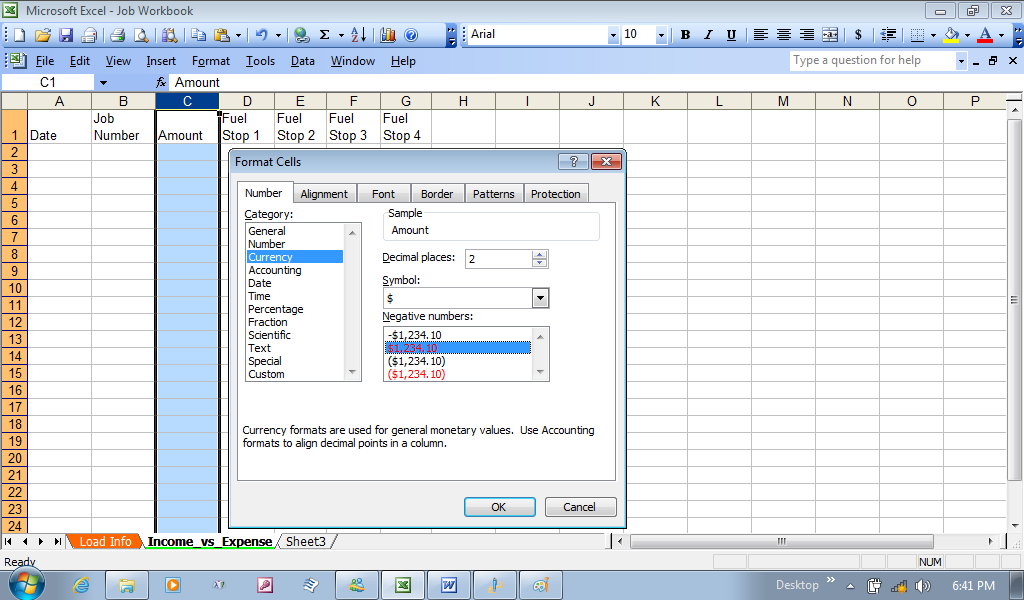 Columns. They will all be done the same way, and be for currency. Like I did with selecting the category for the date, I now chose the currency category. If you look at the window to the right, you can also select how to express the currency when the numbers are negative, and I will show that in the column that will do the math (not yet made up). For now, just know you can do one column at a time, or select all the columns by clicking on the Amount Column (Column C), and while holding the mouse button down, slide to the right to highlight the columns to the right. I’ll express this with Columns D through H; Remember, I am about to add another column that will do the math, so while I know what I want to do, might as well highlight it now…you can do one column at a time if you wish).
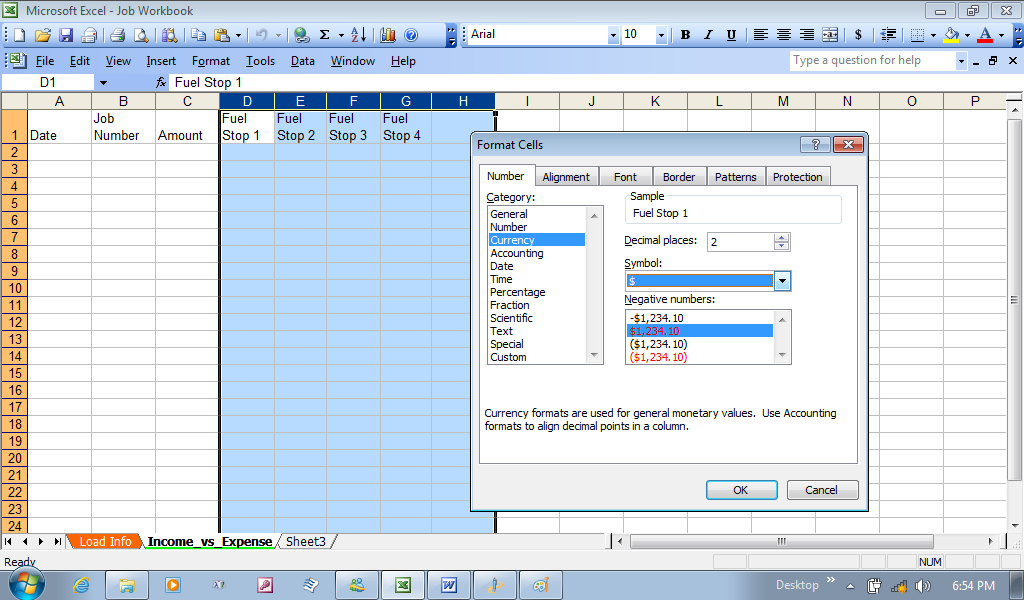 By right clicking, I again choose Format Cells, and in the Number tab, I select Currency in the Currency window, and chose to just show the numbers as red instead of a minus sign, when the amount is negative.
Working with the formulas…
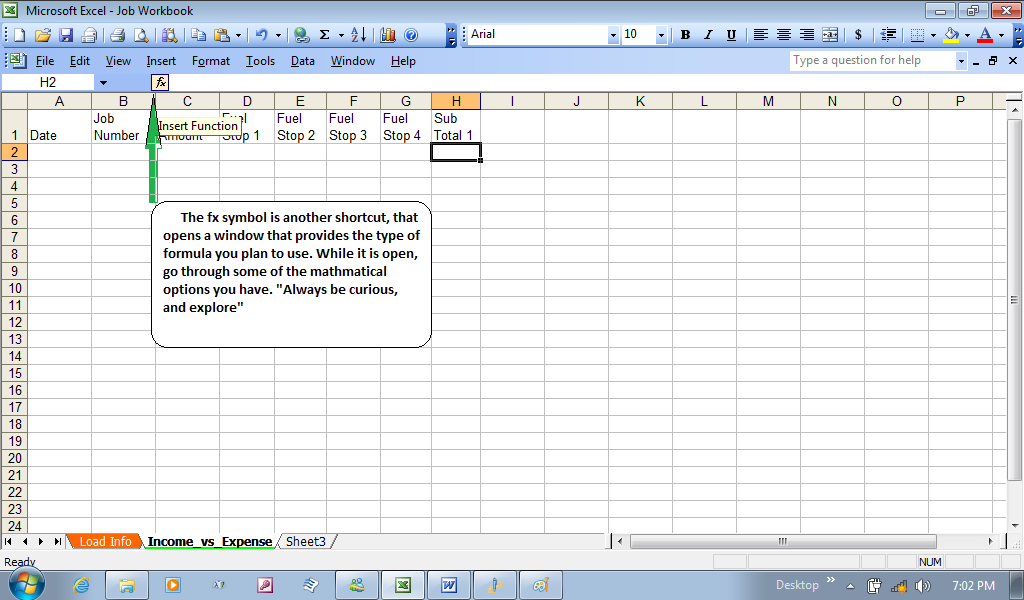
I now went to that blank column, and gave it a name as “subtotal1”. You can call it “total”, or “Difference”, but I know that it only will add the fuel, and subtract the fuels sum from the income; but fuel is only the biggest expense. The truck will need oil and other fluids, parts I can replace, like window wipers, and cleaning materials. I will also make another spreadsheet to cover miscellaneous expenses that will cover replacement parts, such as those wipers, lights, and maintenance supplies. I only named it “subtotal1” to 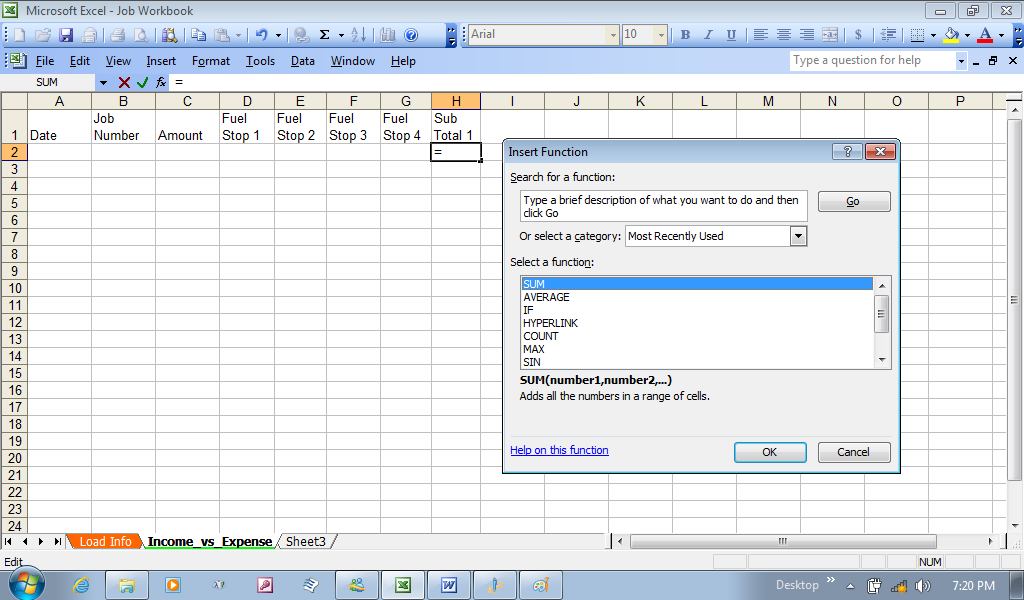 express that this was only one step to figuring the amount left over, after fuel is subtracted from the starting amount. I will leave the category of sum highlighted, and click the OK button. Note: I only chose one cell, “H2”, right under the subtotal1 cell (H1).
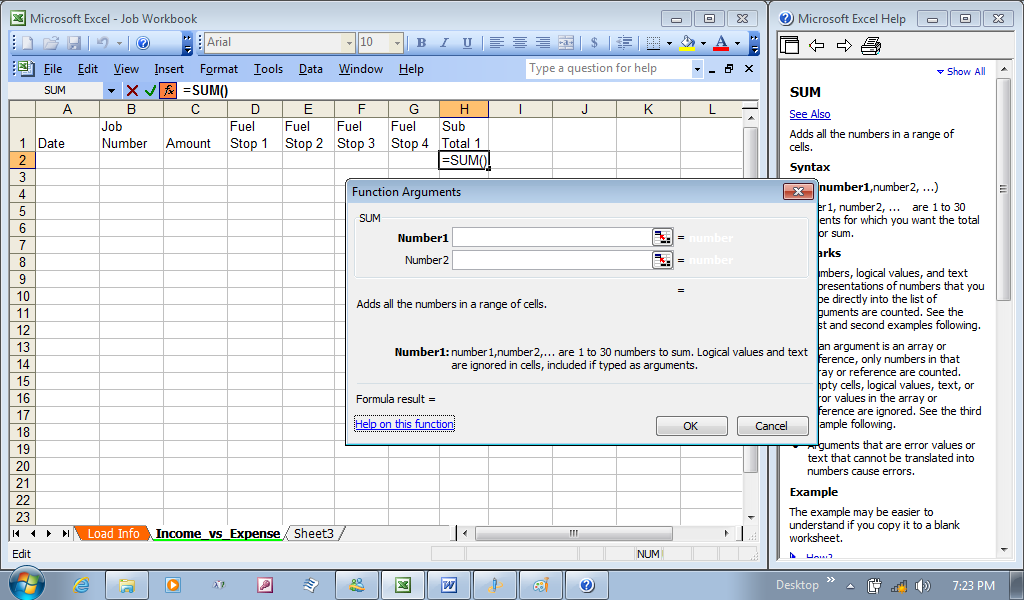
Once I clicked OK the window closed and opened the functions argument window. My next step is to click in the first window “Number1”, and then, go over to the cell under the amount, and click on it. C2 is automatically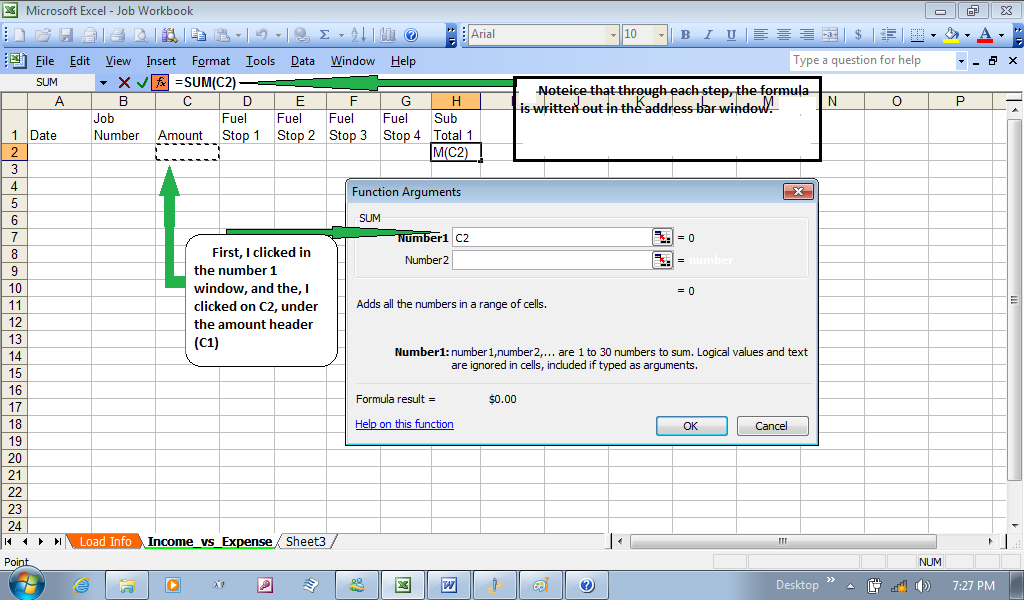 added to the “Number1” window. Next, I’ll go back to the function arguments window, and click in the “Number 2” window (and notice it automatically creates a “Number 3” window underneath). Here I’ll add a minus D2 (-D2), then go to Number3 window and type in –E2, and continue until numbers 4 and 5 are filled with the other cells under their respective Fuel stop header. Then click
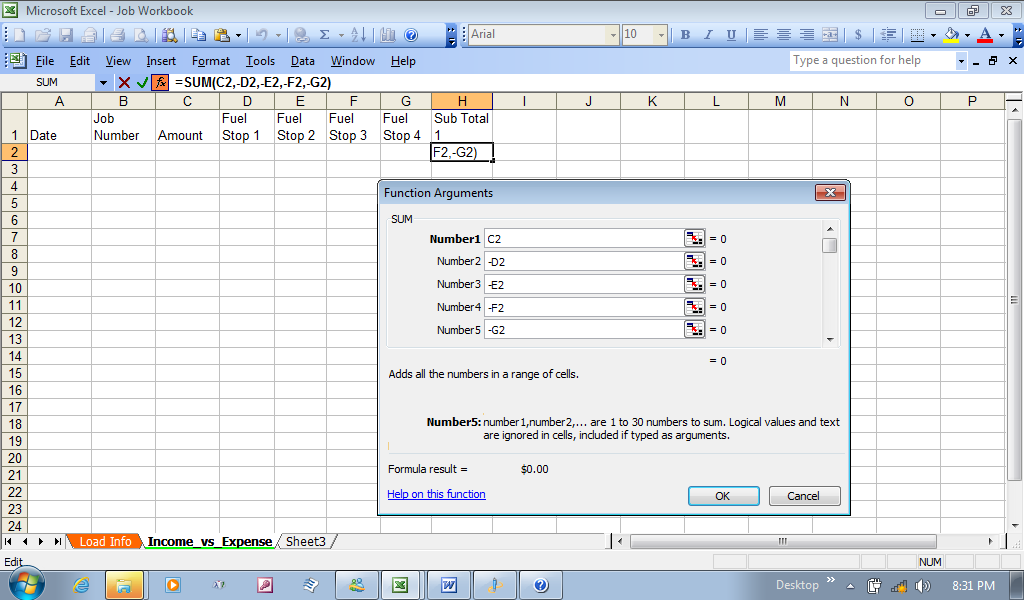 the OK button in the functions argument window.
To test this, let’s add an amount of 100 in C2, then 10 in D2, and 20 in F2. Each time you can see the results in H2 actually subtracting the added numbers to each fuel stop cell.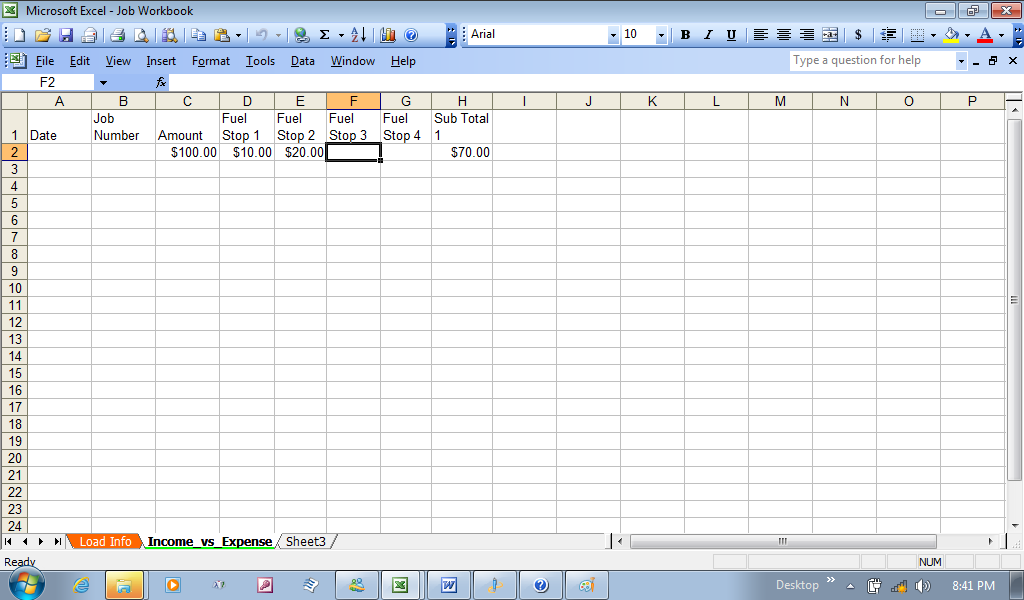
After your satisfied with the trial, remove the added information you used to test the first row. You probably do not want to do this every time. So, 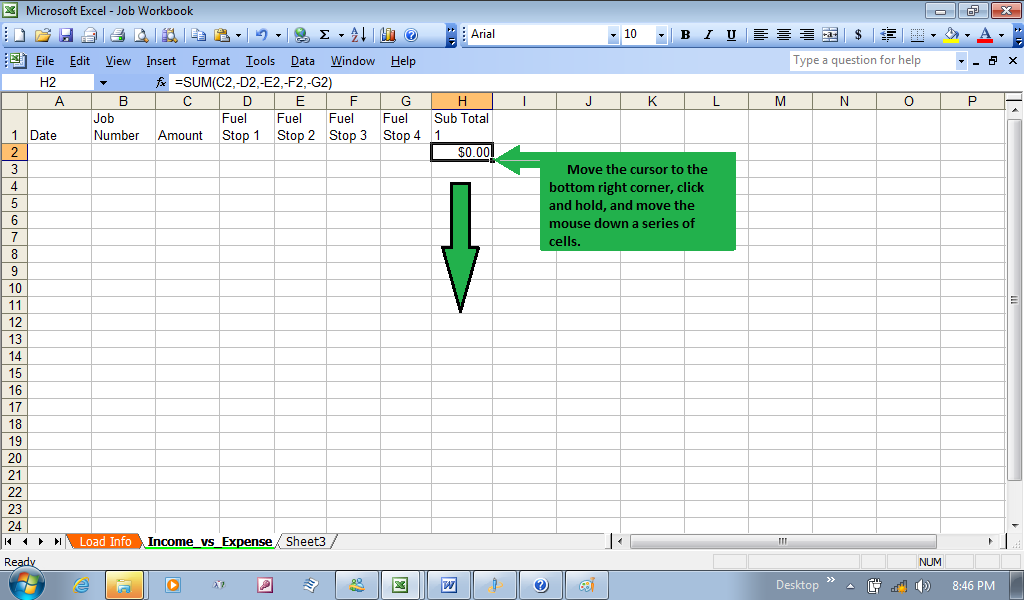 click on cell H2, and notice the little square in the bottom right hand corner of the cell. Move your mouse until the cursor is on the little square, click and hold and drag the mouse down to highlight as many squares you desire. This is known as auto formatting.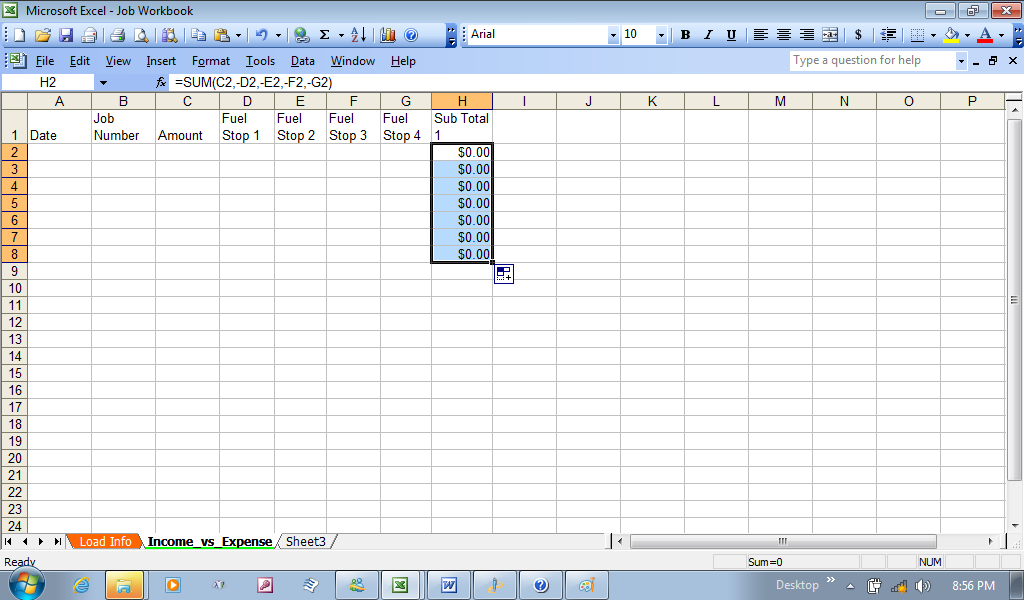
I only went seven down for now. You can always click the last dragged square and repeat the process of clicking and dragging to add more.
More Auto Formatting
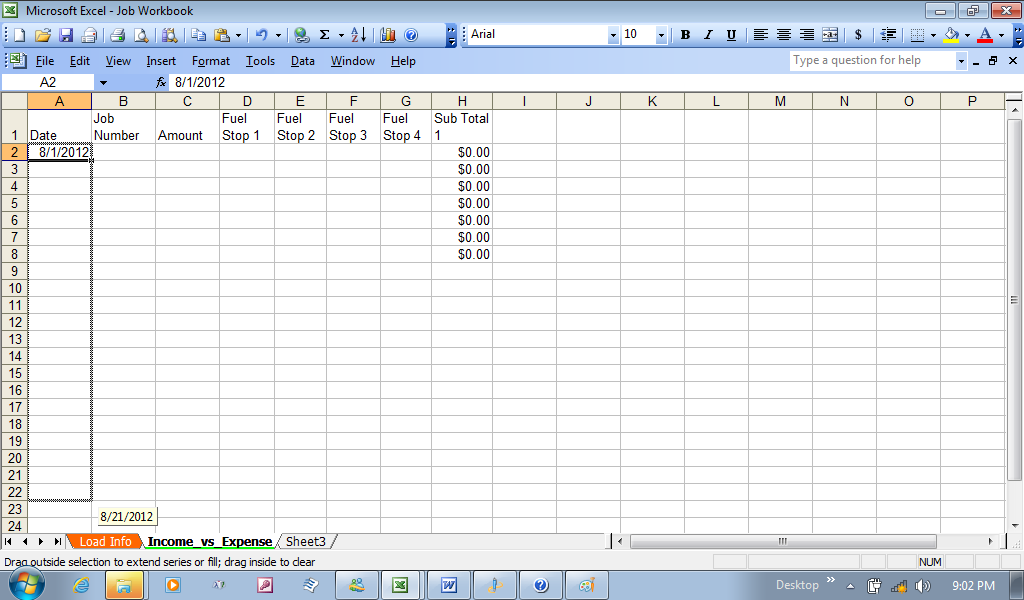 I wanted to actually wanted to show more real value to the spreadsheet, so I wanted to start this for August 1st, 2012. I typed in “8/1” in A2, and then started Auto Formatting the column by clicking and dragging,
 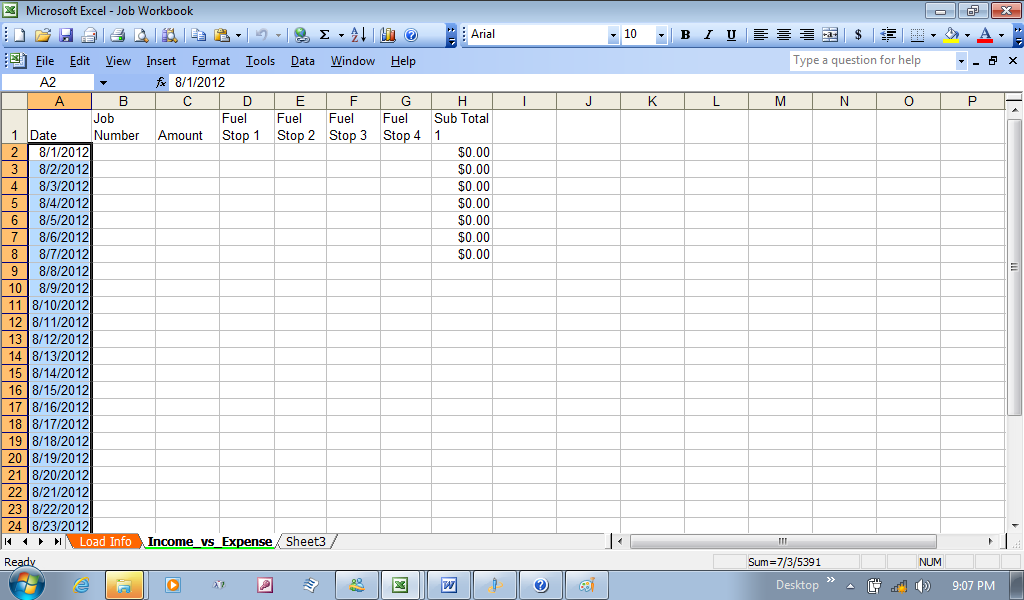 and watched the date change in what is known as a “tag” that followed the mouse. When I got to August 31st, and released the mouse button, and the dates filled in.
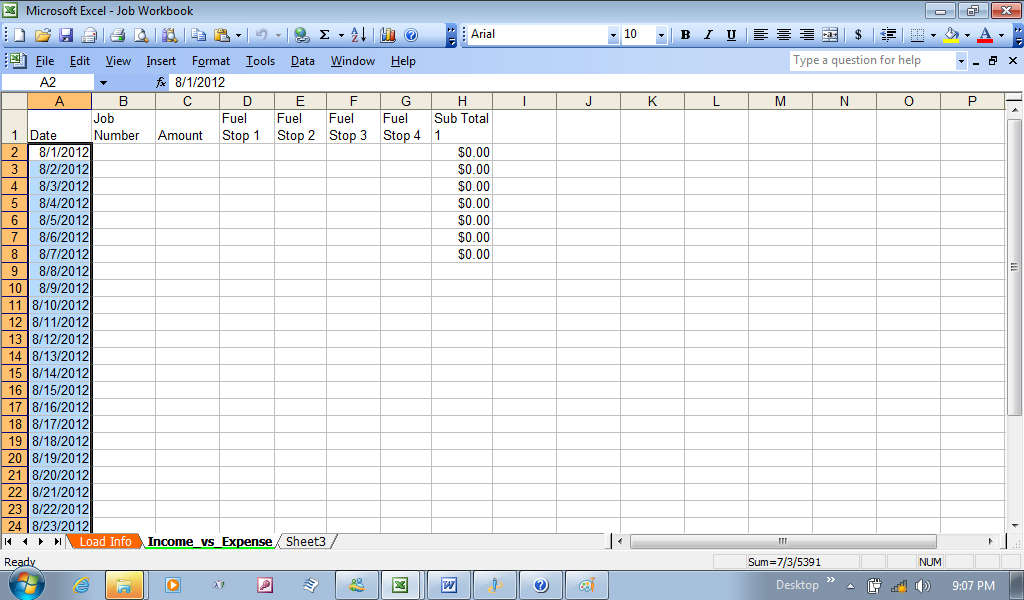
Now, I can go to the last cell for “Sub Total1” Column, and click an drag down to match the Date to August 31st. Now you have an income vs. Expenses (against fuel stops, for now. More will follow). 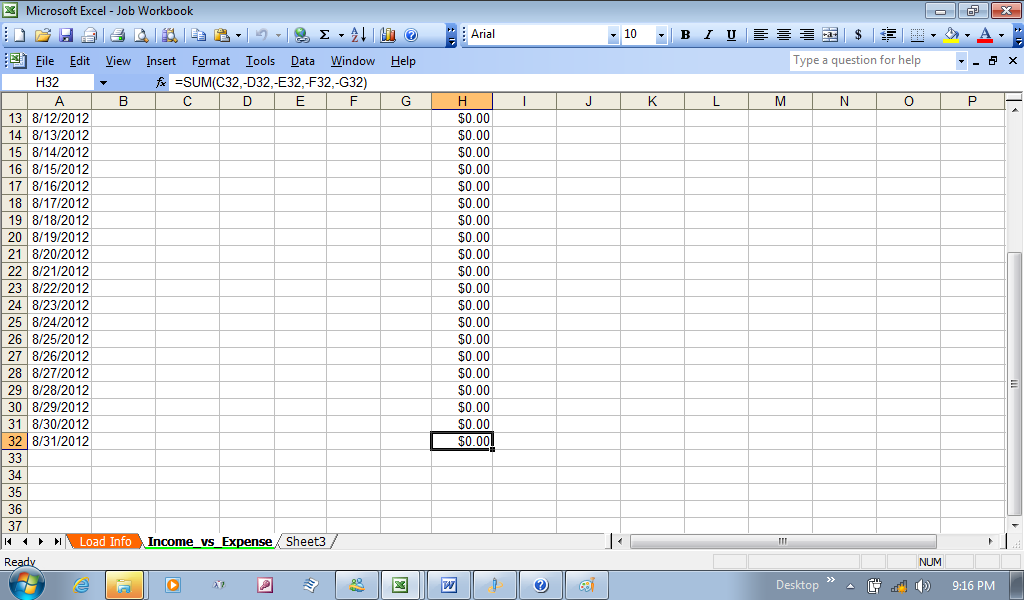
I could actually continue, and will at a later date. My next goal is to give some color to the spreadsheet sometime in the future. I think I will stop here for now.
I think, in the next Blog, I’ll add border lines to show work weeks, and contrasting colors to enhance each week.I’ll even add rows above, and include the month of July to show how to include prior information.
In conclusion, it is still a new workbook. One final points I’d like to make. It is that I never mentioned to save the file every so often, to prevent loss of new changes. Try to do it often, especially whenever you make a change to the workbook (It is a workbook with two spreadsheets in progress).

 Driver's Blog