
Note: This Blog was written to gain interest in recording data using general spreadsheet, found in workbook programs, such as Microsoft Office Excel and Microsoft Works, Lotus, and other named spreadsheets, such as Sunsystem’s Star Office. It was not to answer every possible use, and some programs are designed to work differently. There are many well written books for sale that will go into great detail in the uses of these programs. This is simply an introductory to inspire the user to explore, and make use of these programs. Note: This Blog was written to gain interest in recording data using general spreadsheet, found in workbook programs, such as Microsoft Office Excel and Microsoft Works, Lotus, and other named spreadsheets, such as Sunsystem’s Star Office. It was not to answer every possible use, and some programs are designed to work differently. There are many well written books for sale that will go into great detail in the uses of these programs. This is simply an introductory to inspire the user to explore, and make use of these programs.
I was asked if I could suggest and assist another driver with developing a few spreadsheets to maintain his records on a daily basis. Even in an introductory, there is so much I could suggest. I try to keep it general, since the driver may only have what came with his operating system, but even if he upgrades to an office product, the information can be “carried into” another spread sheet program.
As a concept, a workbook can be described as a “constant work in progress”, since it will be used to create, formulate, and maintain active data, such as load calls, income and expenses, and anything else that comes to mind. It’s structure is no different than writing out a list, with columns describing the rows in information always being added. So let me get started, with the understanding that every spread sheet will appear different when it comes to the menu and shortcut bars, but for the most part, all function with the same purpose.
Getting Started with a Blank Workbook [Spreadsheet]
Microsoft Works has a spreadsheet program, where you can open up a single spreadsheet, and follow along where the following applies. A separate Blog will try to duplicate these steps to show that formatting columns are done differently.
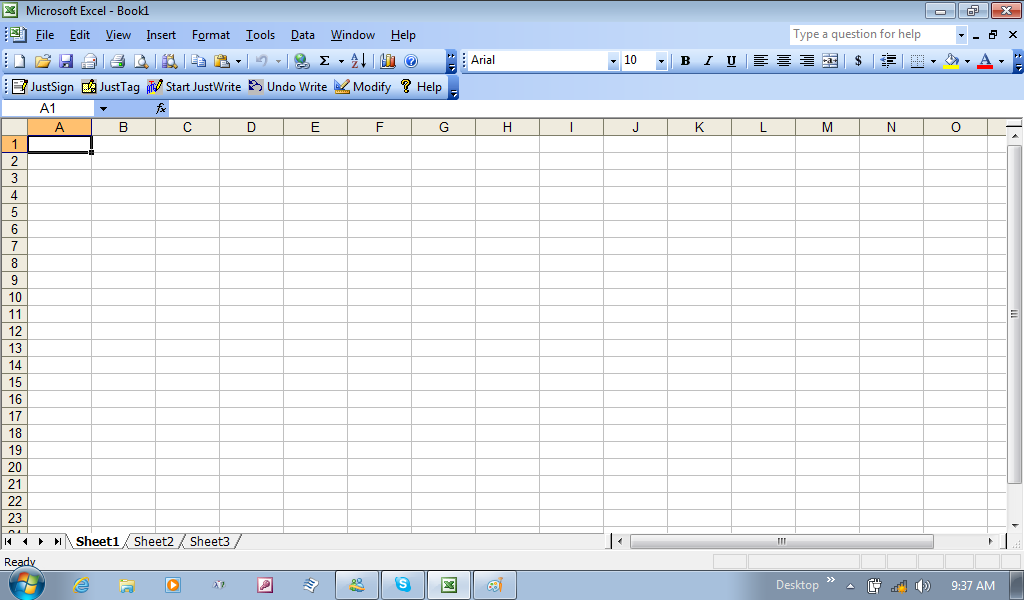
Note: You can always click on the pictures to get a better view.
Basically, when you start out with a spreadsheet, you want to use it to create a list of related information over a period of time. There blank workbook or spreadsheet starts out with simply grid lines (a version of a blank pap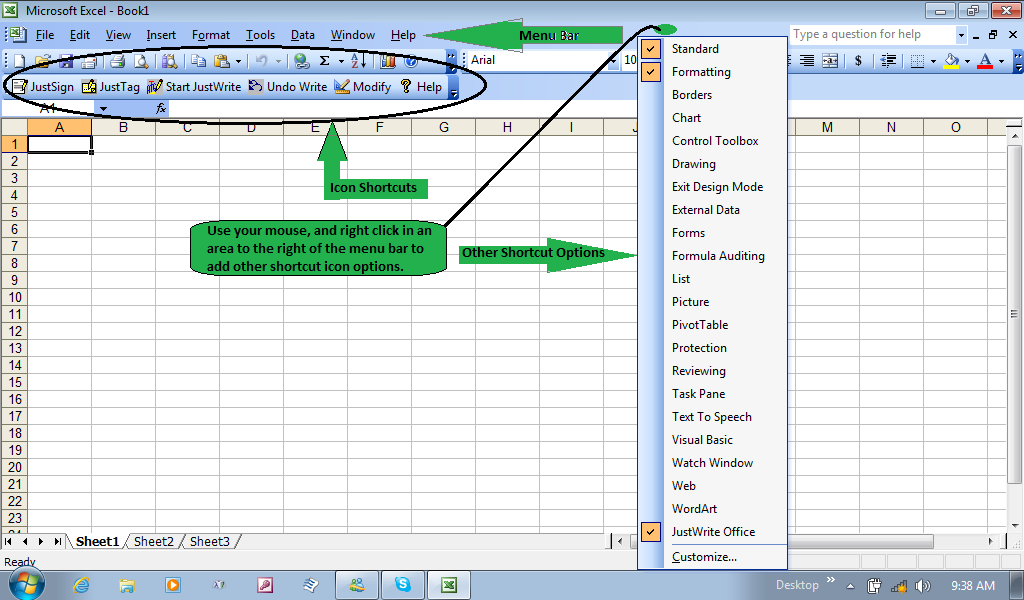 er). It has many tools that can be used. These can be added under the Menu bar, by right clicking just right of the menu bar of File, Edit, Tools, and Help. By experiment and exploring these icon shortcuts, will give you a better understanding of how useful an office program such as Microsoft excel can be.
Deciding how to start
It may take a little thought of how you want to list your information, but it is no different than if you were to start with a blank page. In this case, I was starting the first spread sheet (notice that in this office program, a blank workbook starts with three blank spreadsheets) for information relating to my pickup and delivery locations. The first column would be the date the work was assigned to me.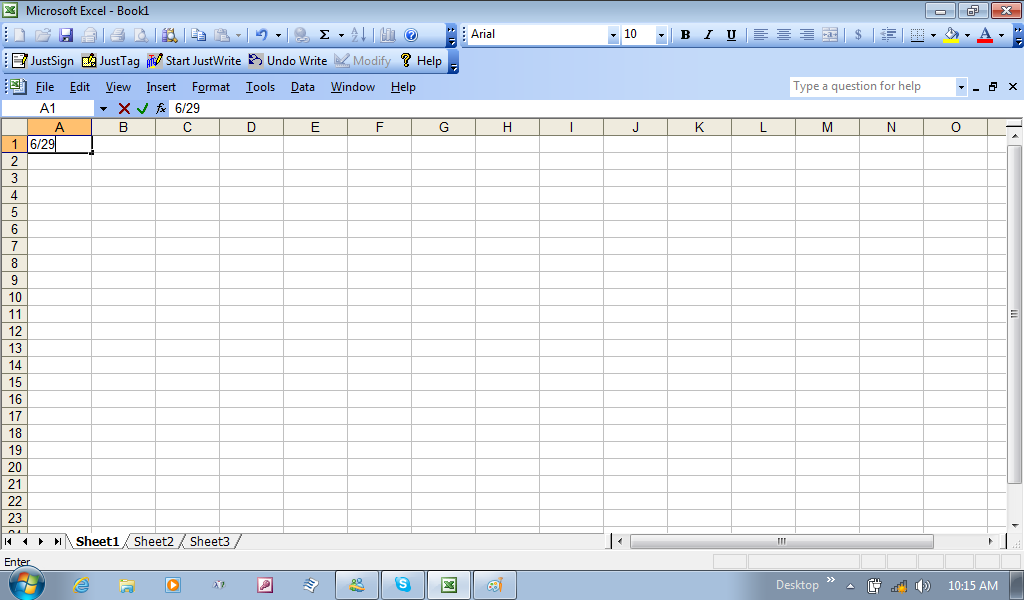 Each square is called a cell, and they all start out in a general form, where it will try to figure out what you are attempting to use that cell for by how you type the information. Once you start with a couple of numbers and a slash follows, it figures it may be a date format you are creating. After you add the month and day, you can simply hit the return [enter] key, and it will add in the current year, as 2012. To give a short date format, you can right click on this given cell, and choose format type, and in the General tab category, click date
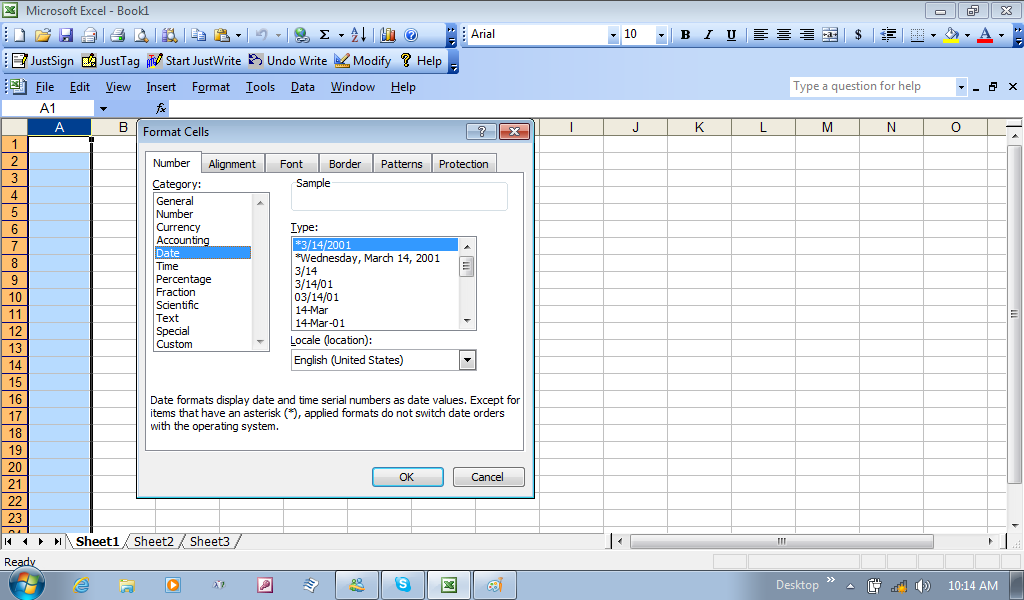 , and in the right window the type of date format you desire. To do this to the whole column, you click on the Column Field (in this case Column A), and it will highlight that whole column. Now, anytime I add in the Month and day, separated with a slash, and hit enter, the hole column will always finish with the year in the format I chose.
Adding Column Headers
Basically, you may want to first figure out what information you want to place in the first row, or in this case, start with the information you desire to add, and then go and add a new row above, and add the header for each column. By clicking on the number 1, for the first row, it highlights the entire first row, and then right clicking on number 1, I can choose Insert, and a blank row is added. As a note, you can add a row in between information, and that column format set for the column done previously will be carried into the new blank row. In short, that Date format would still work like how it was formatted before adding this row. Still, we can add text, without any affect, and the program sees it as text instead of a date. But if we were to add numbers to that column, it would try to formulate into a date format. For
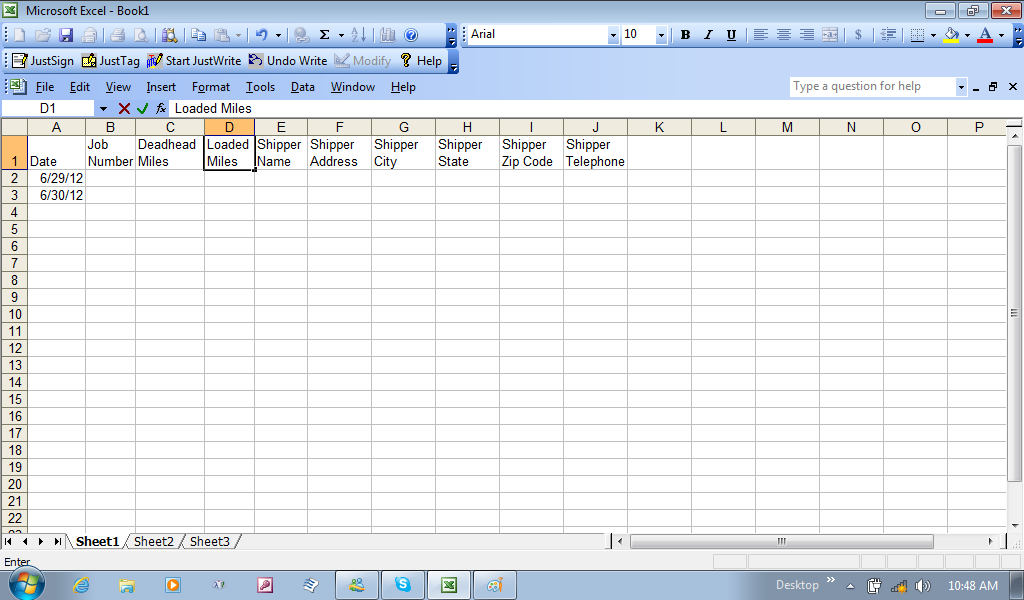 now, we will just add text, and call them headings for the columns, giving these columns purpose. By highlighting the row, number 1 again, and right click, then click on Format Cells, I can click on the Alignment Tab, and look down the list of options, and check the wrap text box to keep the typing from spilling into the other columns.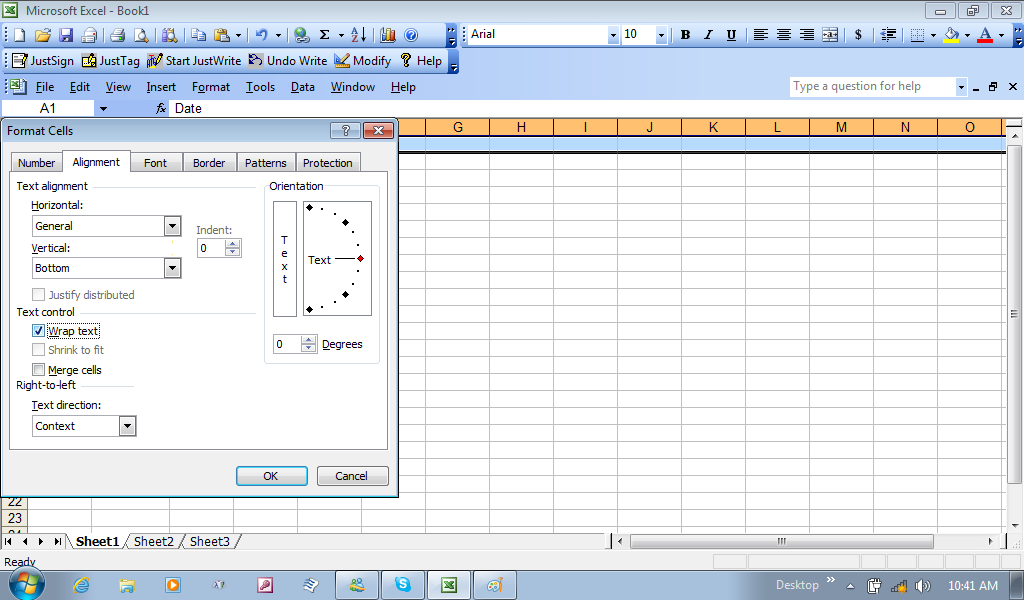
This will now let text wrap in the same cell. If you use the cursor and move it to any bordering column, you can stretch and shrink the size of the cell to give it the appearance you are comfortable with.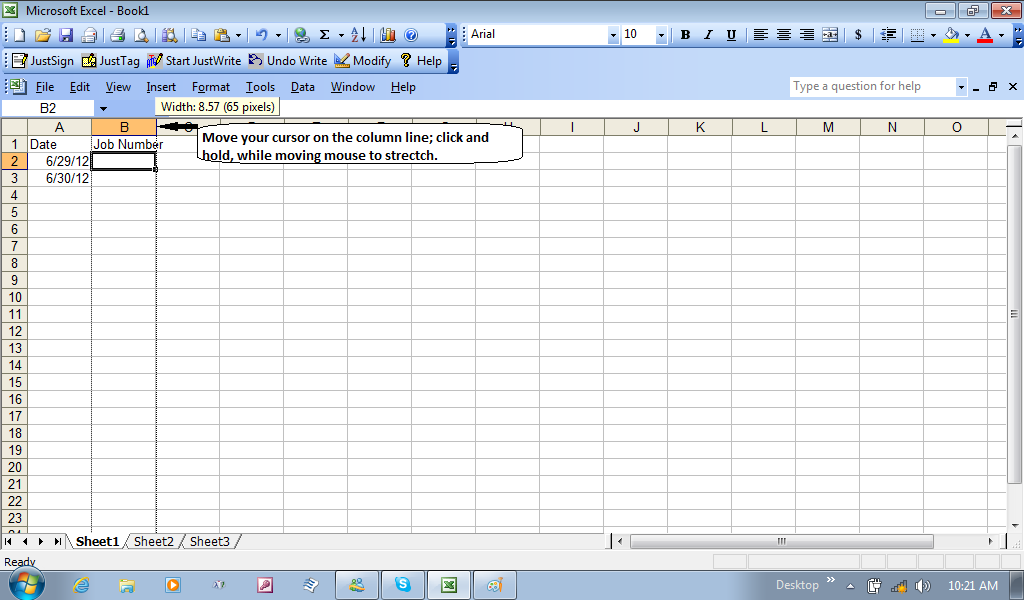 You can also resize a row in the same manner. As information added varies in the number of characters, you may need to stretch columns to get the desired information to be seen in full, and may happen often; thus, the “work always in progress”. It sounds like work, but if you were to use a blank page, you would be erasing or starting over with a new page if you had to spread out your columns on paper. This is on computer, thus you save paper getting the appearance you are looking for.
Start Saving Your Work Often
When I started out with computers, it was with an old Tandy keyboard, and I had to write the code to make the computer act the way I desired. I could type for hours typing code. Well, where I resided, it appeared that the electric company would switch power stations around the same time in the afternoon. I would be so absorbed in my typing, time would come, the switching of power stations would happen on time, and there was a split second loss in power during the switching of stations. All that work would be lost. I needed to learn to save my work periodically. That way when the next time the power stations were switched, I didn’t lose all my code work.
We have just started, but already made various changes to the spreadsheet. Although this early is the time to save the file, and even give it a name. Go up to the Menu bar, an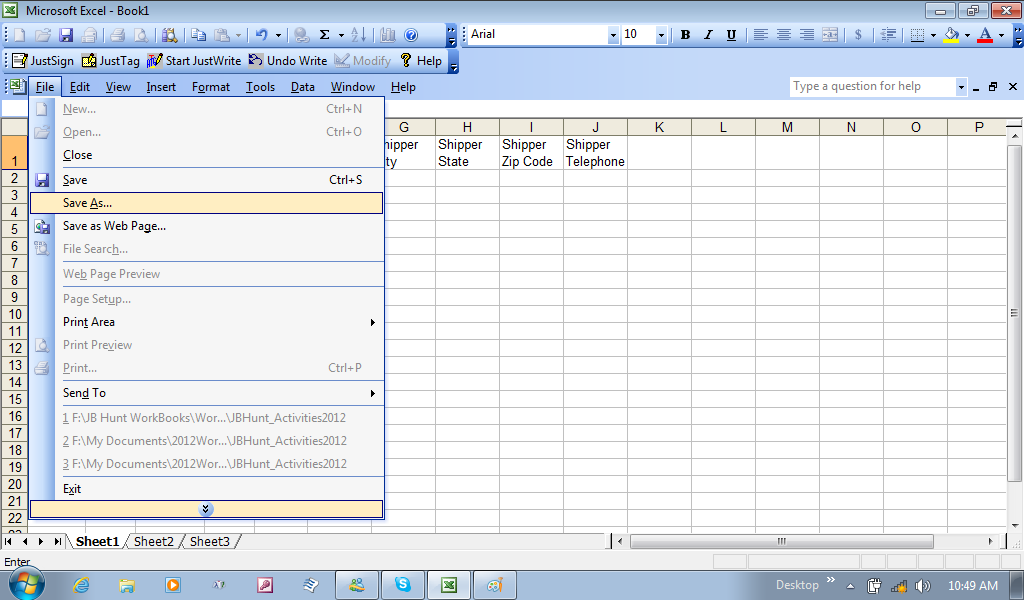 d click the file menu. The initial time you save this, you can simply click on save, but if this is was your second attempt, you might as well get in the habit of going down the list and choosing Save As for you initially new works. This way, you don’t overwrite a file with the same name.
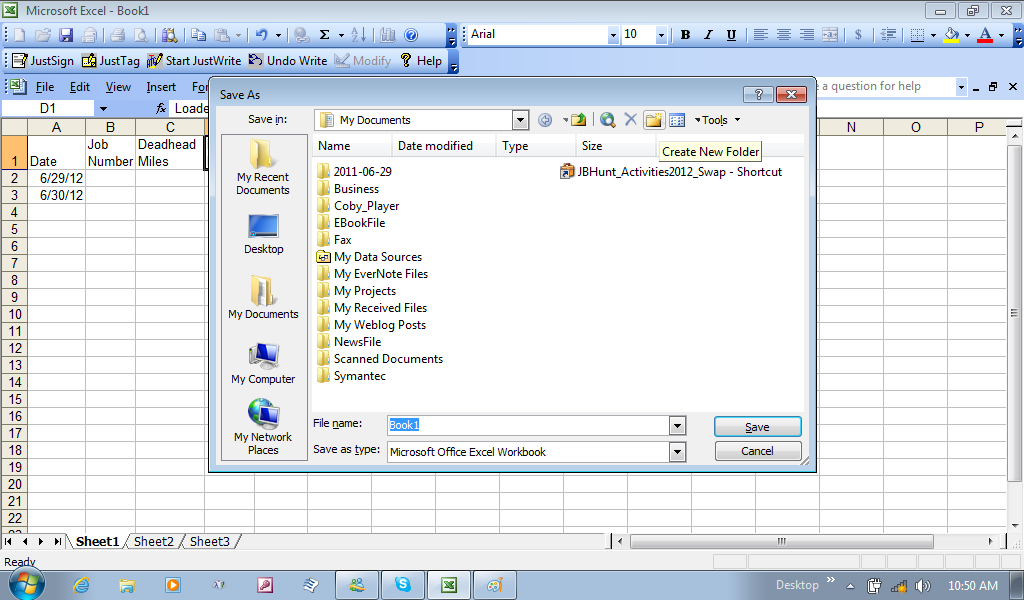
This is also how you can create a new folder in the process, and decide where this folder is to be created, so as long as you know where it is, and begin organizing your My Documents Folder. By the way, you can always move folders into other folders, so d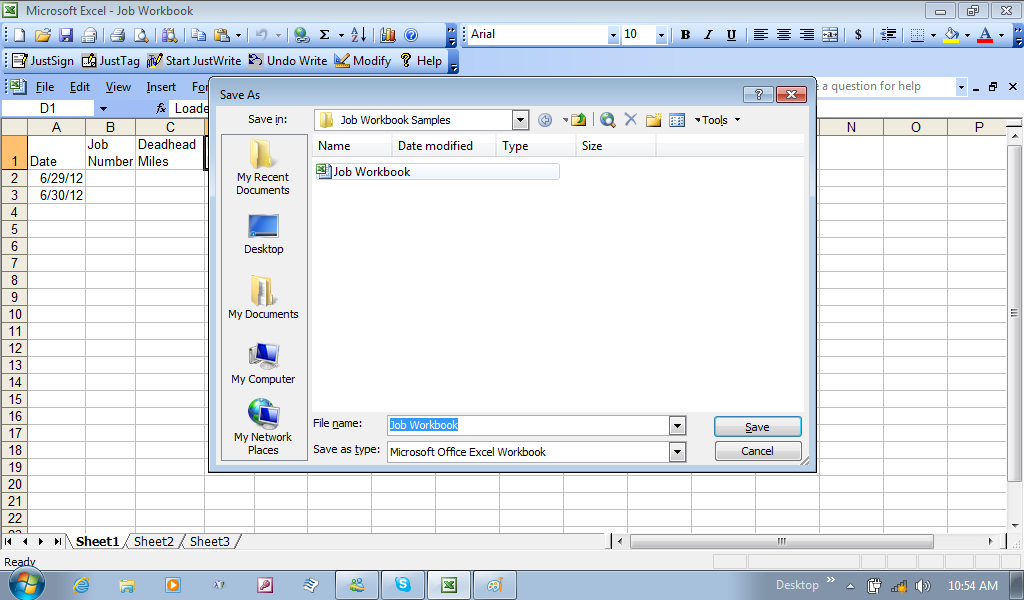 ecide on how you wish to organize, and even categorize your folders. The next decision is the name of the file itself. I actually saved it once, and did the process again to show why going through the process of Save As gives you the opportunity to see if you save a different file, with different information, but with the same name, the new file would “replace” the first file, and that first file would be gone. It was just an exercise to show you to always give the file a name different from others, and unique to the file you have created. From here, when you want to save this file, you can now just simply go to the file menu, and click save. It now will save any additions and changes to only the file you are working on.
Returning to Formatting Cells
Remember how the date column was formatted? Well, if you didn’t explore the format options, this is a good time to assist with some other columns that have been given header names in the first row.
The pick up date column can be highlighted by right-clicking on the “K” field column, and choosing the date category (just like I first started in Column A). The next column, Pick up Time, I right-click, and choose format cell, and again, look down the category to find time. Then, to the right, I can choose the type of format the computer will show the time. Now, you can also format the telephone number column, and the zip code column individually. 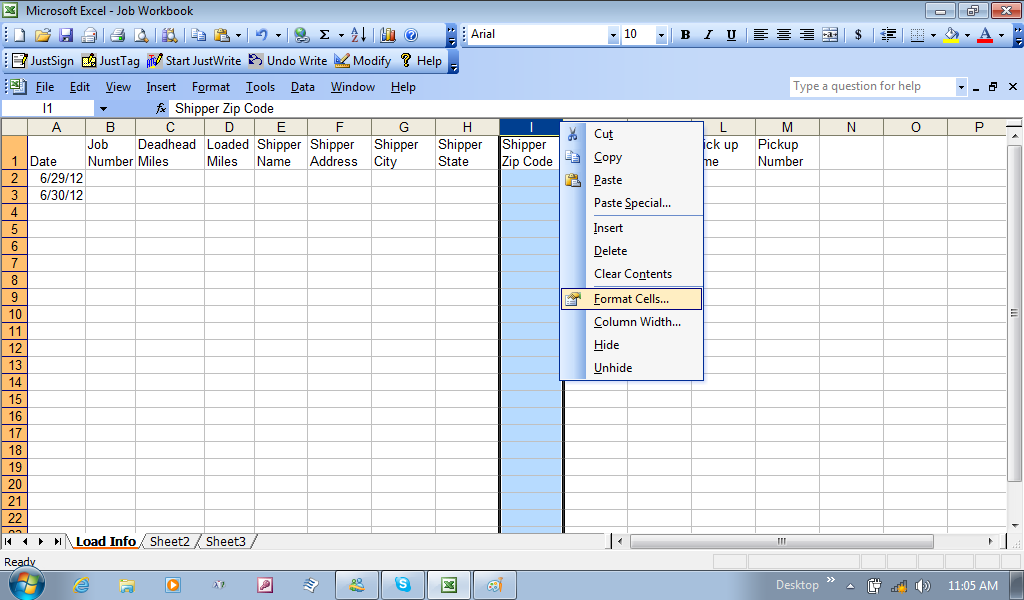
Same process as everything else, by highlighting the whole column, then Format Cell, but in the category window, both zip code and telephone format types are found in the special category.
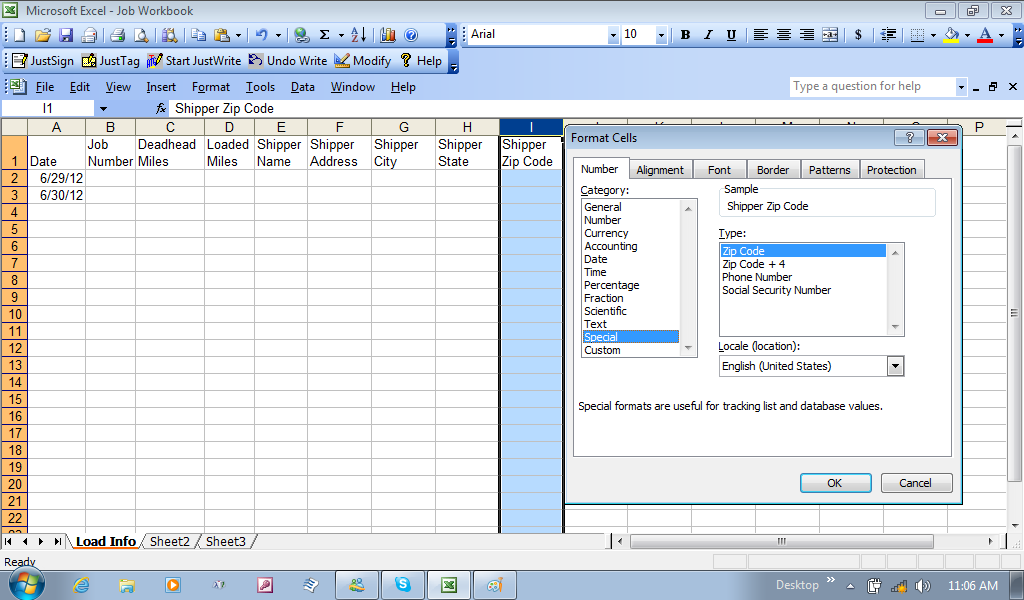
After you have formatted column I, then you can format column J (the Shipper Telephone Number column). Remember, you are just starting out, so explore and experiment. After you have formatted the telephone number column, simply add in seven different numbers (no spaces or symbols) in a cell, hit the return [Enter] key, and see how the program formats the numbers. If you like it, remember to get rid of the random numbers, since you were just testing the cell. Now, go to the file menu bar, and click save. Remember to do this often. If your computer loses power, or other possibilities, it would loss the work recently done, and you would need to repeat these steps by opening the saved file again.
Renaming Spreadsheets
As I mentioned before, an office workbook starts with three blank spreadsheets. You can add and delete spreadsheets, and you can rename them for what each sheet would represent.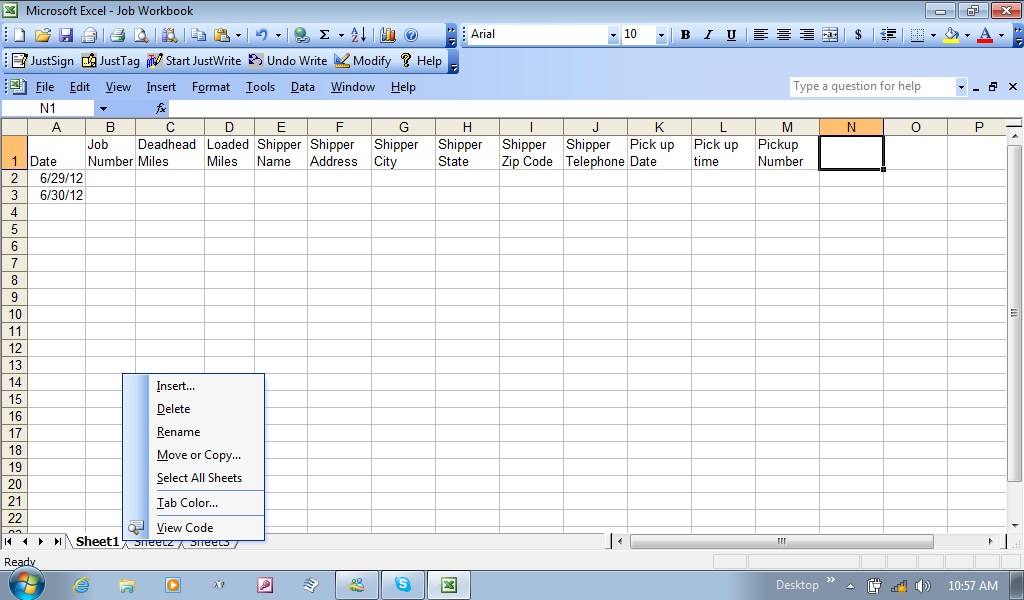
By moving the cursor over Sheet 1 and right-clicking, I can now rename the sheet, in this case I named it to reflect this sheet was specifically load information. While I am at it, you can also give the sheet tab a different color, which can be a way of keeping specific files related to each other by color, or shades of the color. Let us say, we plan to use this sheet to list the loads I get for each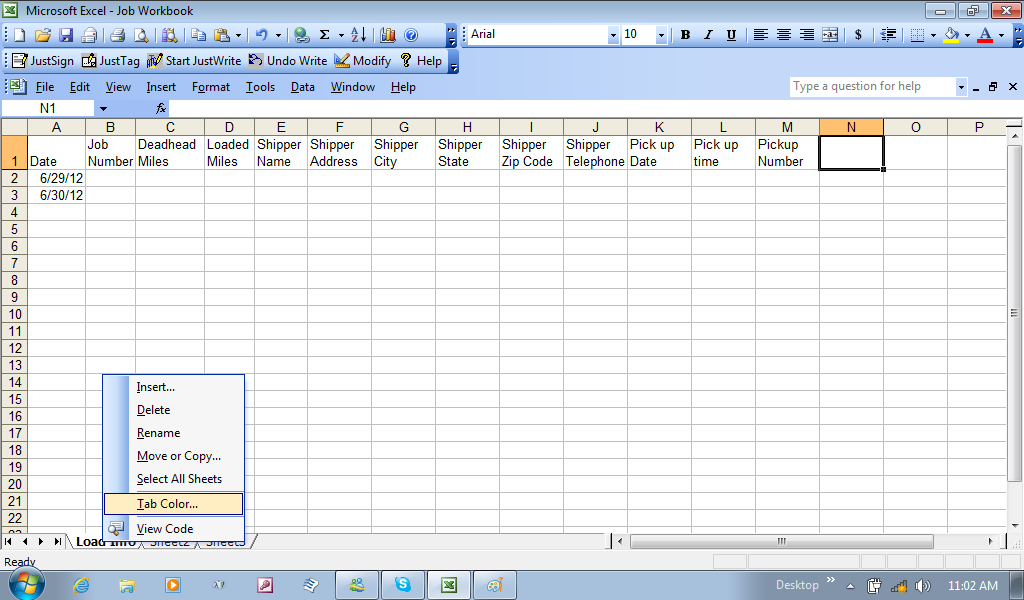 month. I can make copies of this sheet, and name them Jan2012, Feb 2012, March2012, etc. Other sheets for each month can be created later, like recaps. Then I can decide that LoadInfoJan2012 would be orange, and recapsJan 2012 could be a shade of orange. For now, just know, you can right-click on the sheet, click Tab color, and a color palette will give you a choice of colors.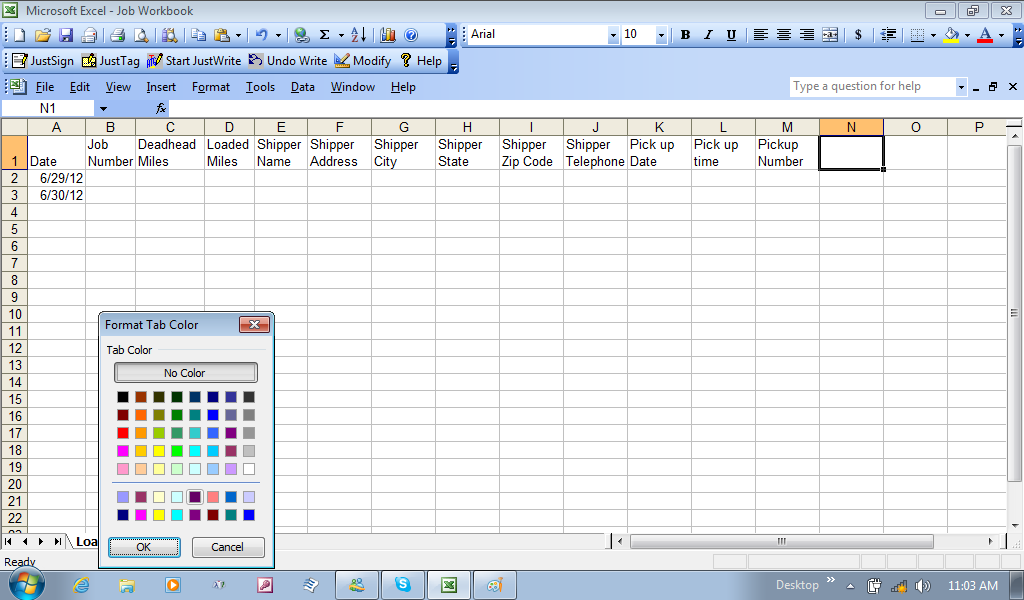
I think this will be the first of many blogs, just on this project file called Job workbook. In the meantime, before this becomes the true and important file used for your business, learn to explore and experiment with what has already been started. Also, get accustomed to the Help menu bar. This will open a help file where you can read on other abilities for the program, and even search for what you want to achieve or see. I’ll get back to this another day, using the same file. This way, you can experiment, without fear of losing anything. Honestly, unless you go to a book store, or order through Amazon.com, you can still learn from what you already have.

 Driver's Blog